Troubleshooting Monitor Flickering: A Practical Guide
Display flickering is a common frustration for PC users, but it can often be resolved through simple hardware checks or software adjustments. Before considering a replacement, follow these steps to diagnose and potentially fix your screen issues.
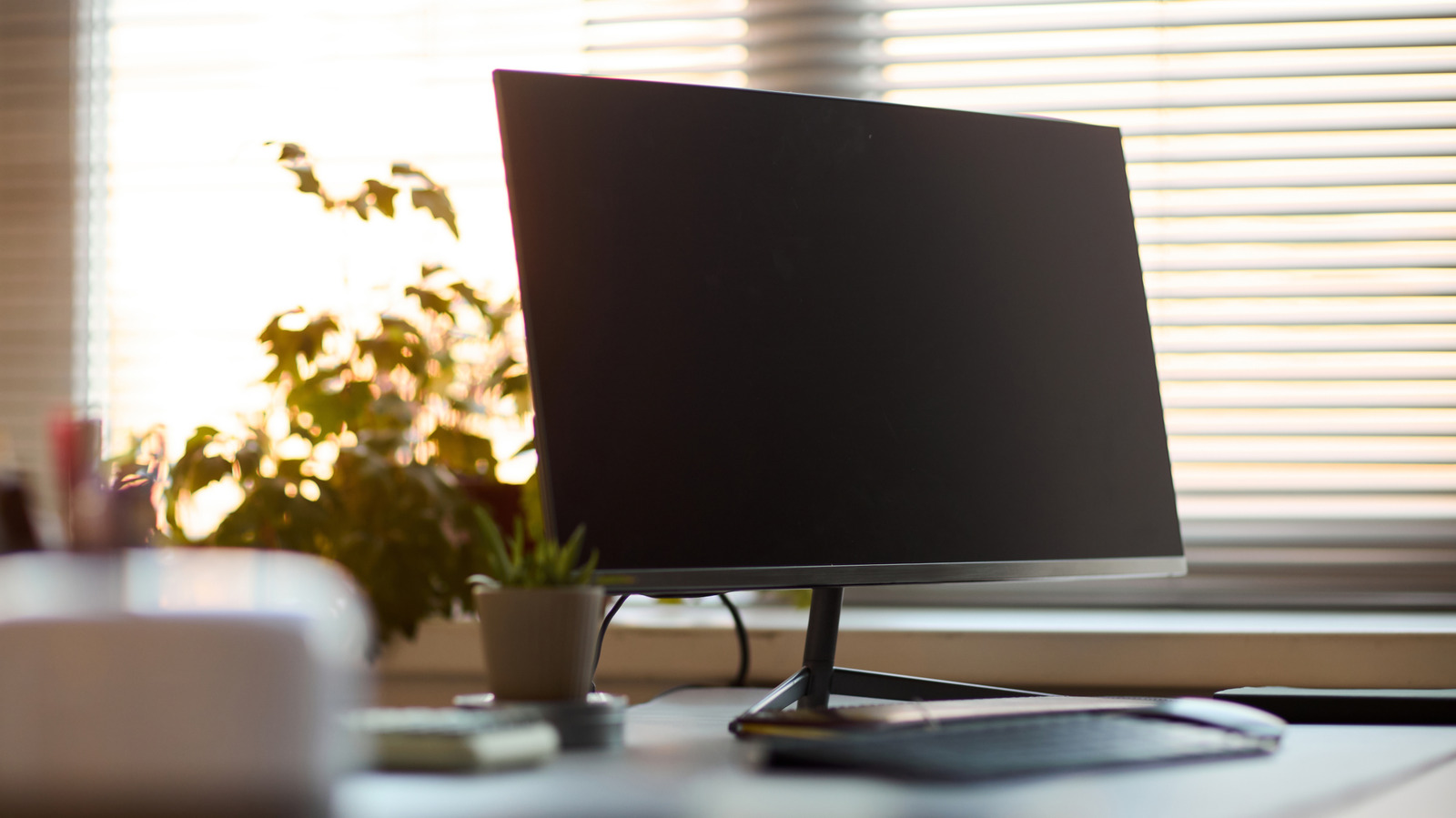 💻Laptops & PCs
Photo: engadget.com
Key points
- Check all video cables for loose connections or physical damage.
- Update or roll back graphics drivers to address software conflicts.
- Verify that the display refresh rate matches the monitor's specifications in Windows settings.
When a monitor begins to flicker, it can be an immediate cause for concern, but the root cause is frequently a simple connection error. The most common culprit is a faulty or loose display cable, such as an HDMI, DisplayPort, or VGA connection. Users should first ensure cables are securely seated and inspect them for physical damage. If the issue persists, testing with a different cable or switching to an alternative input port on either the monitor or the computer can help isolate the problem.
If the hardware connections appear sound, the issue may reside within the software. Outdated graphics drivers are a frequent source of display instability, and performing a clean update is often the most effective solution. Conversely, if problems began immediately after a driver update, rolling back to a previous version may restore functionality. Additionally, users should verify that the monitor's refresh rate settings in Windows 11 match the display's native capabilities, as a mismatch can cause visible stuttering or flickering.
Should these troubleshooting steps fail, the monitor may be suffering from a more severe hardware failure. Symptoms such as persistent blackouts, vertical lines, or dimming colors often indicate that the internal components are reaching the end of their lifespan. While professional repair is an option, the declining cost of modern 4K and OLED panels often makes replacement a more economical choice for many users.
Should you buy it? If basic troubleshooting fails to resolve persistent screen artifacts, it is likely time to invest in a new display rather than pursuing costly repairs.
Source engadget.com — engadget.com/2319538/monitor-flickering-when-turned-on-how-to-fix/ ↗
Read next
 📰Gadget News
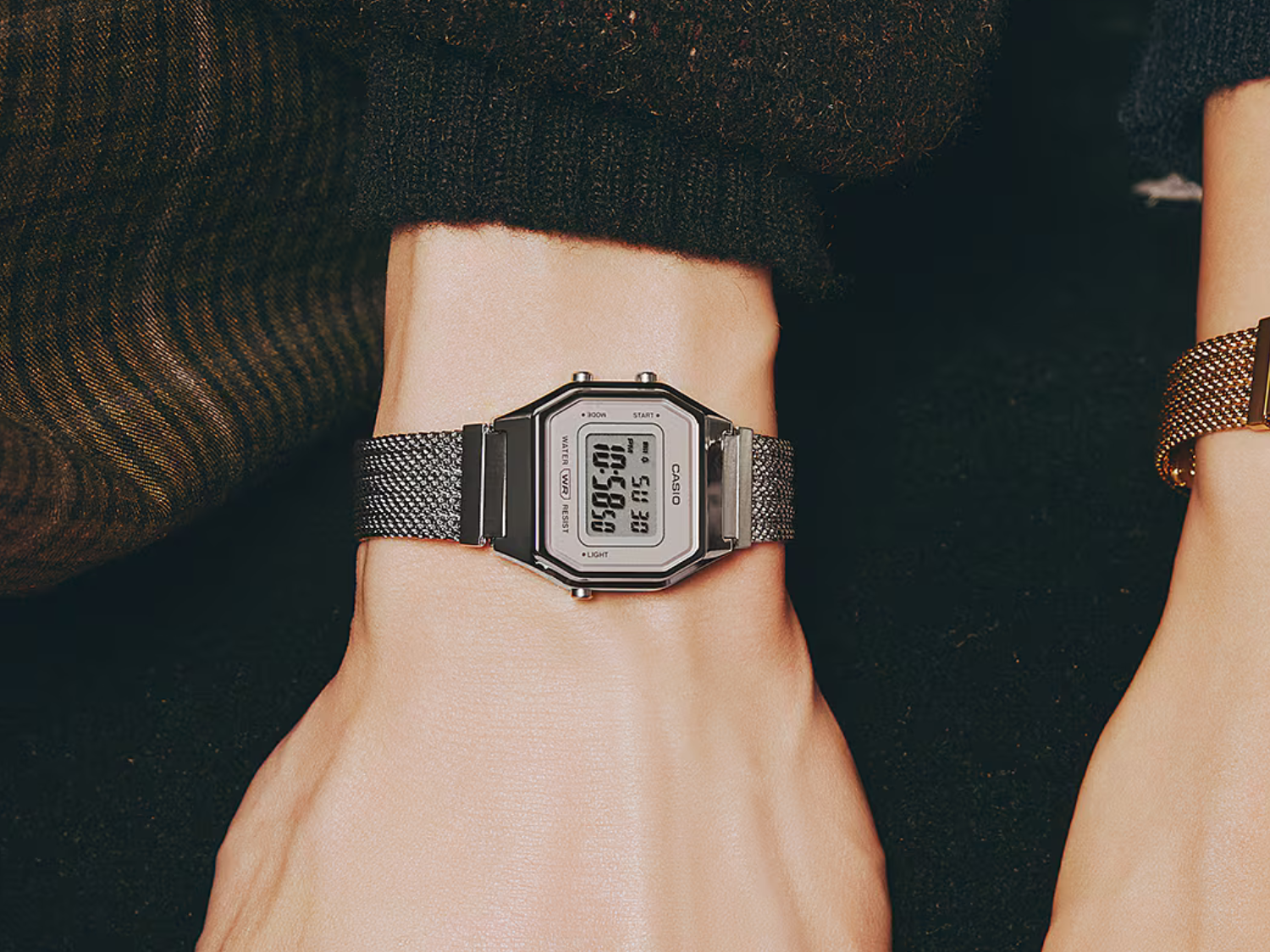
Casio Expands Availability of Mesh-Band LA680 Vintage Watches
Casio has brought its refreshed LA680 vintage digital watch series to the Japanese market, featuring new stainless-steel mesh bands.
 📰Gadget News
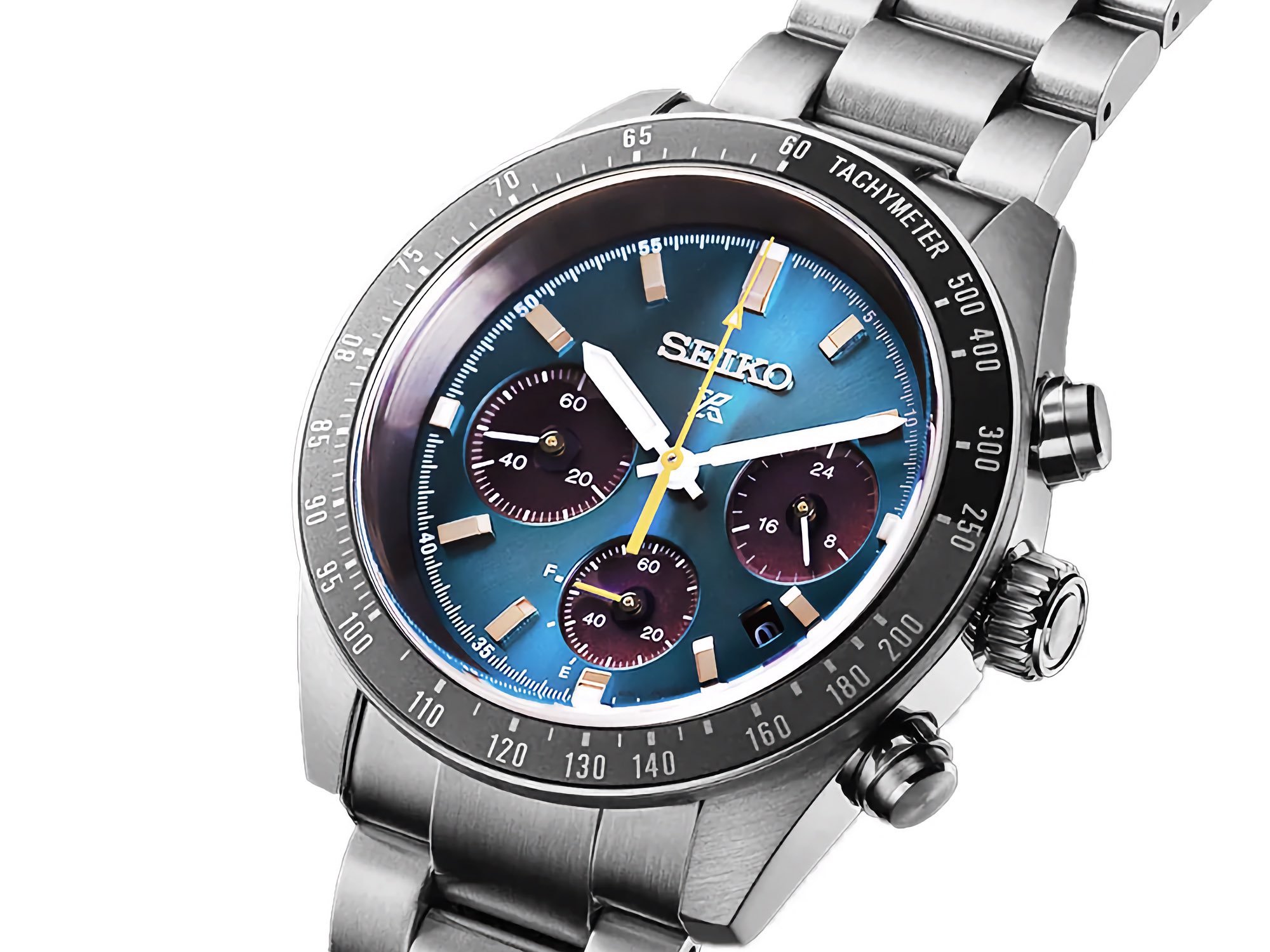
Seiko Launches 7th Philippine Limited Edition Prospex Chronograph
Seiko has unveiled the HBJ006P1, a new limited-edition Prospex chronograph inspired by the Pan-Philippine Highway.
 🏠Smart Home
Modders Unlock Higher Frame Rates for GTA 6 on Jailbroken PS5 Consoles
Modders have successfully bypassed the 30 FPS limit in GTA 6 on jailbroken PlayStation 5 consoles, enabling higher frame rates on supported displays.
 📰Gadget News
Vivo X500s Leaks Point to Custom Dimensity 9600 Pro Chipset
The upcoming Vivo X500s is expected to debut with an enhanced version of the Dimensity 9600 Pro chipset and a high-refresh-rate display.
 📰Gadget News
Google Addresses Memory Issues Caused by Gemini in Chrome
Google has officially confirmed a fix for a bug that caused the Gemini web interface to consume excessive amounts of RAM in the Chrome browser.
 📰Gadget News
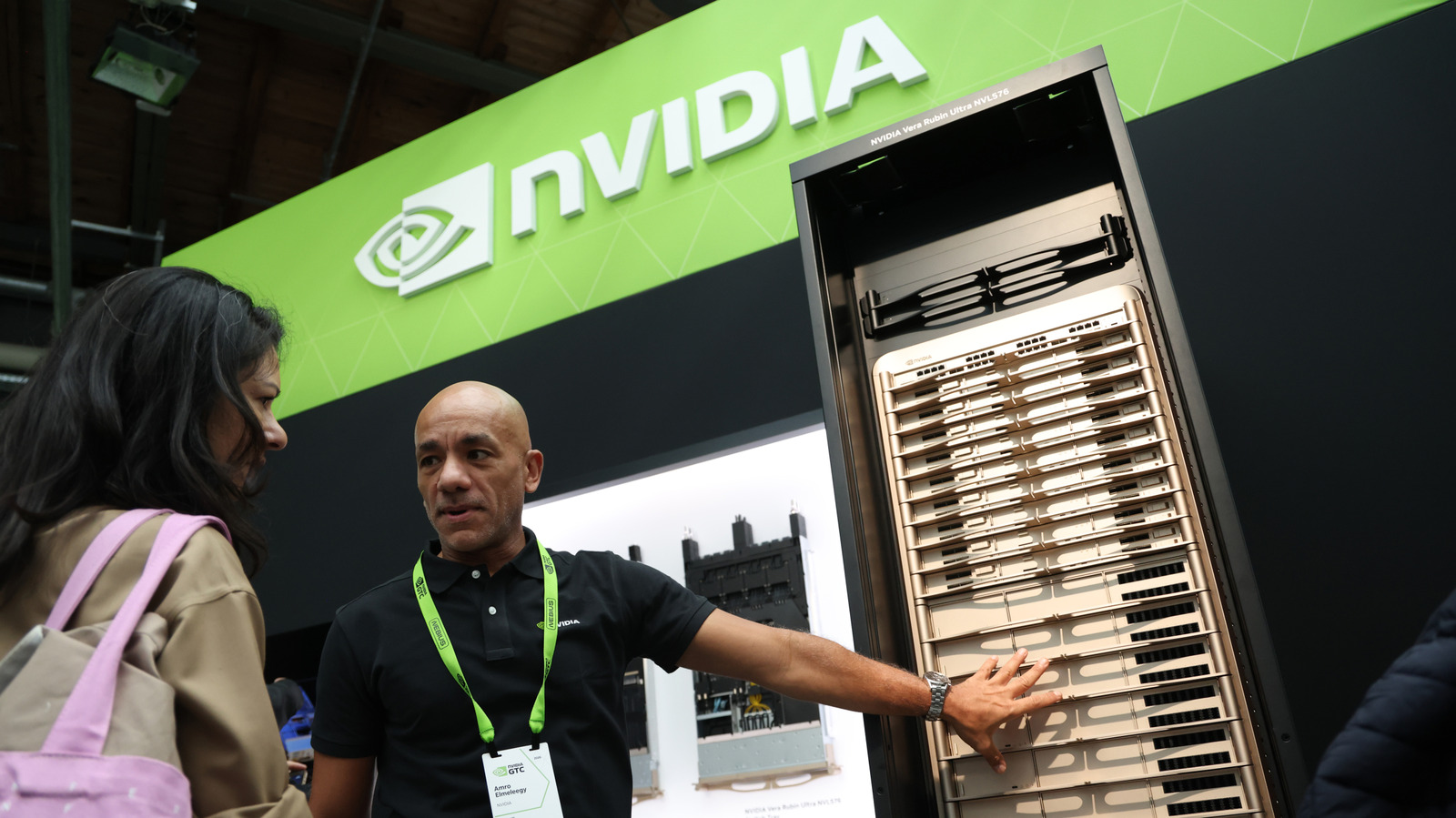
NVIDIA Halts AI Server Shipments to Key Southeast Asian Markets
NVIDIA has reportedly paused shipments of AI server hardware to Malaysia, Singapore, Thailand, and Indonesia amid tightening US export controls.