Troubleshooting PC Camera and Microphone Issues: A Practical Guide
Hardware failures in remote communication are often caused by simple software settings or physical switches rather than permanent damage.
 💻Laptops & PCs
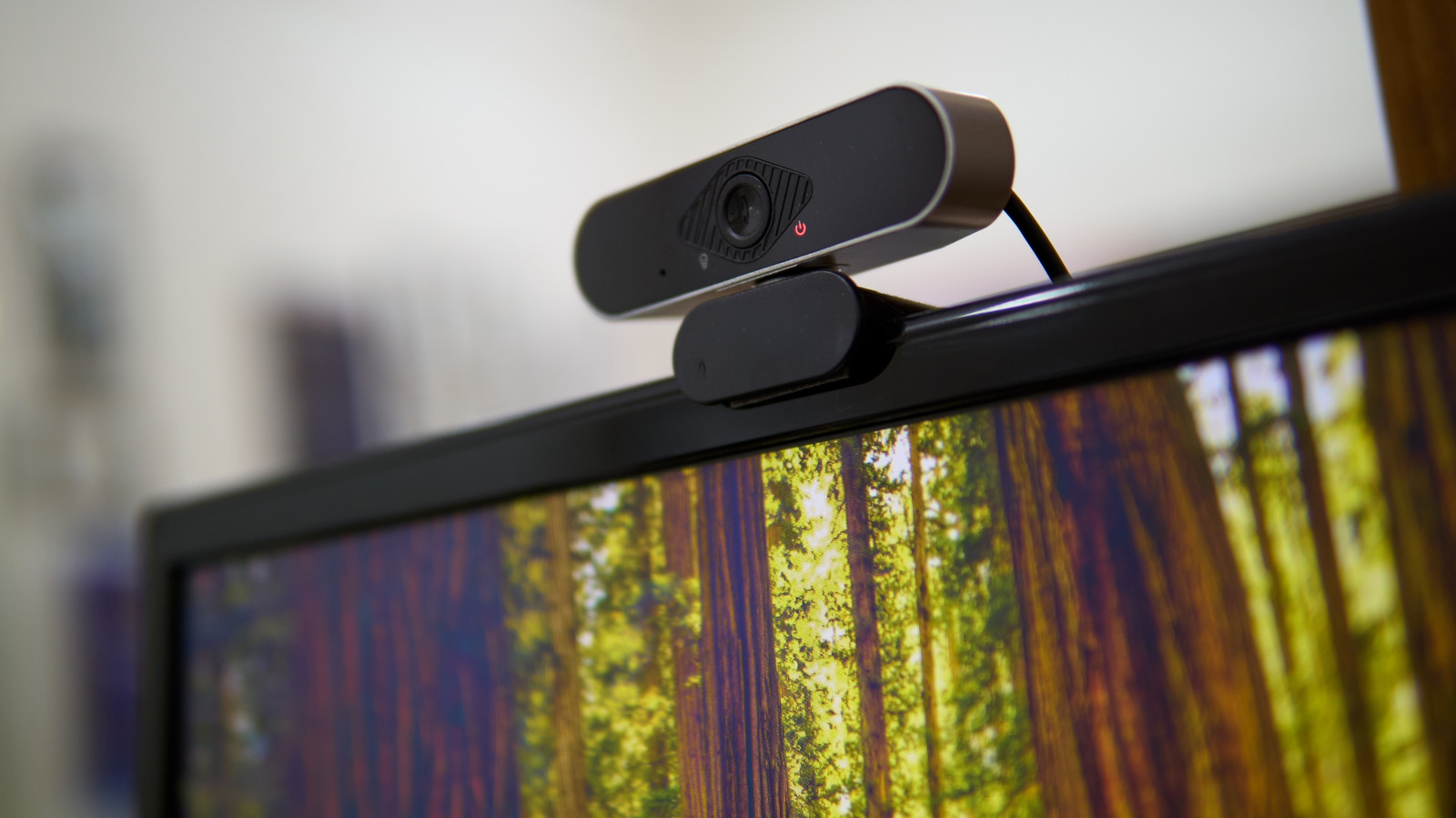
Photo: engadget.com
Key points
- Check for physical lens covers and hardware mute switches before troubleshooting software.
- Ensure system-level privacy permissions are granted to specific apps in Windows and macOS settings.
- Use Device Manager in Windows to uninstall and automatically reinstall drivers as a last-ditch software fix.
Modern laptops and desktop setups rely heavily on integrated or external peripherals for remote communication, yet hardware failures often stem from simple configuration errors rather than mechanical breakdowns. Whether using a high-end external webcam or a built-in laptop sensor, ensuring your audio and video inputs are correctly mapped is essential for maintaining professional reliability during calls.
Initial Physical and Software Checks
The first step in troubleshooting involves verifying that hardware is not physically disabled. Many modern laptops include physical lens blinds or dedicated mute switches that are easily overlooked. For those using external accessories, it is vital to inspect cable connections and independent power buttons. Once physical connectivity is confirmed, users should verify that the operating system has selected the correct input. In Windows 11, these settings are found under Settings > Bluetooth & devices > Camera, while microphone levels should be set between 80 and 100 percent in the Sound menu to ensure clarity.
Managing Permissions and Drivers
Privacy settings frequently block camera and microphone access at the system level. Both Windows and macOS require users to grant specific permissions to individual applications through their respective Privacy and Security menus. If an app has permission but still fails to display video or capture audio, a full restart of the software or a check of the internal app settings—such as Zoom’s pre-meeting prompts—is often necessary. For persistent issues, checking for system updates is the next logical step, as macOS bundles driver fixes into general updates while Windows offers them through a dedicated update tool.
Advanced Windows Recovery
Windows users have additional tools at their disposal, such as updating GPU drivers via AMD or NVIDIA software to resolve video output anomalies. If a device remains unresponsive, the Device Manager allows users to uninstall the hardware driver entirely. Upon a system reboot, Windows typically attempts to reinstall the driver automatically, which can clear deep-seated software conflicts. If these steps fail, manual driver installation from the manufacturer's website may be required.
Should you buy it? If your integrated hardware remains unresponsive after these software fixes, it may be time to consider a dedicated external peripheral for better reliability and quality.
Source engadget.com — engadget.com/2311859/pc-camera-microphone-not-working-common-reason… ↗
Read next
 ⌚Wearables
Apple Launches Health AI Study App for iPhone and Apple Watch Users
Apple has rolled out a dedicated application for its new Health AI Study, inviting US users to examine how people interact with conversational medical tools.
 🏠Smart Home
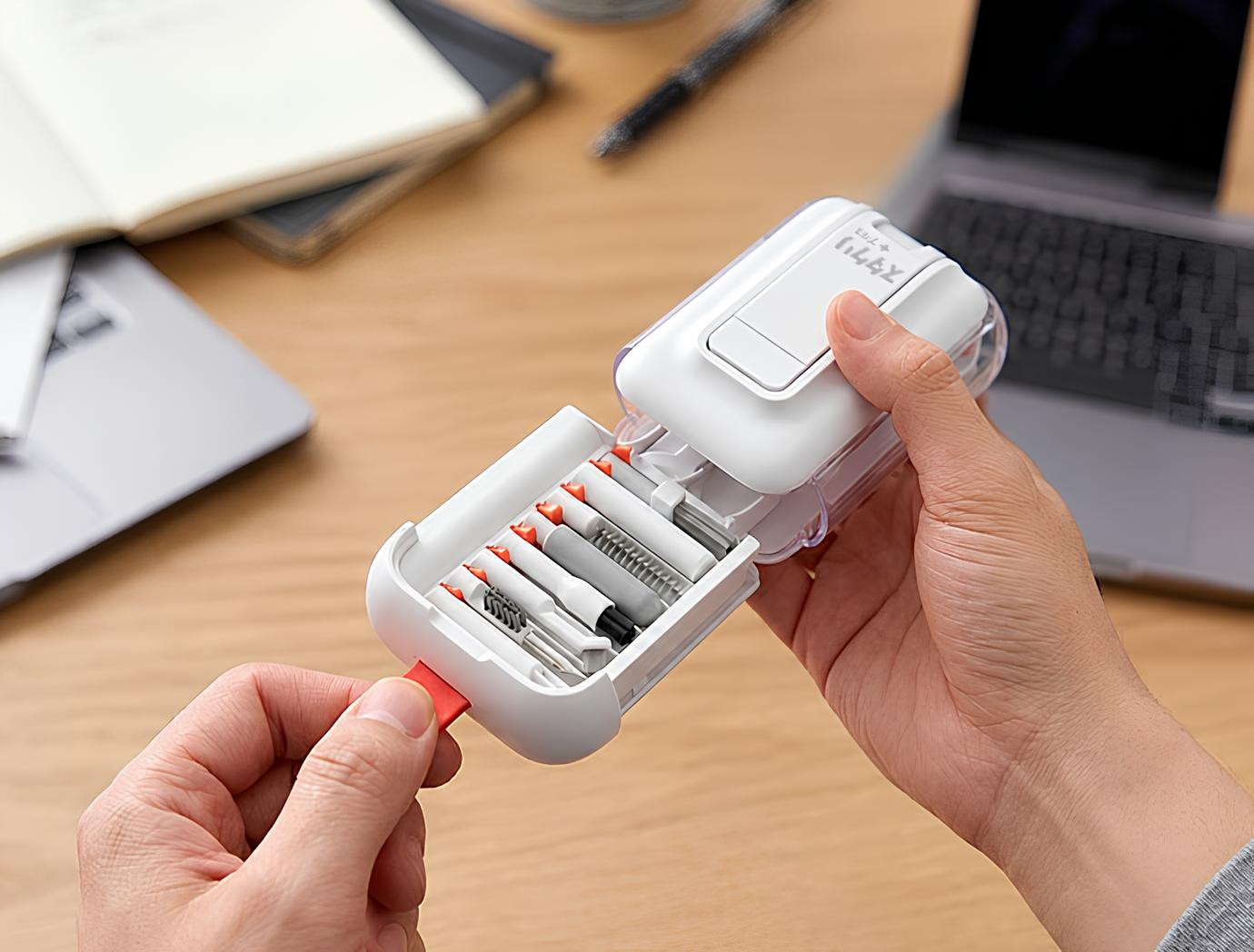
Area Launches Stakuri Plus: A Compact Phone Stand Packed With 17 Cleaning Tools
Japanese brand Area has released the Stakuri Plus, a portable smartphone stand that doubles as a comprehensive 17-in-1 electronics cleaning kit for roughly $16.
 🧭Buying Guides
Cloud vs. Local Storage: Which Backup Method Fits Your Gadgets Best?
A detailed comparison of cloud storage services like iCloud and Google Drive versus physical local drives, weighing access, costs, and reliability.
 🧭Buying Guides
Zelda: Ocarina of Time Remake Review Sparks Metacritic Debate
A single mixed review for the upcoming Zelda: Ocarina of Time remake on the Switch 2 has dropped its Metascore from 96 to 95, igniting backlash from fans.
 📱Phones
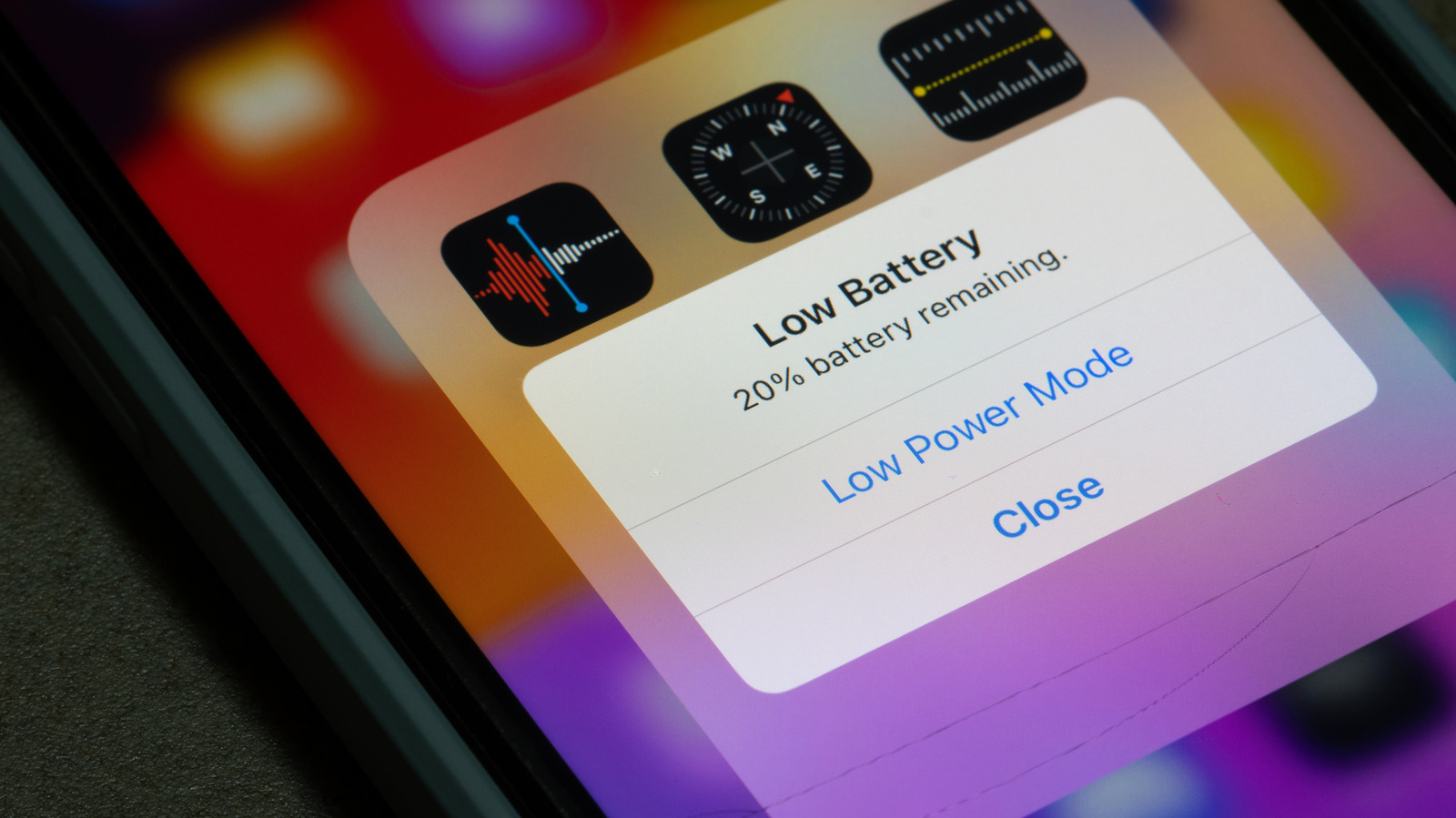
Understanding Sudden Phone Battery Drops: Causes and Fixes
Experiencing rapid battery percentage drops on your phone can be frustrating, but the issue usually stems from aging lithium-ion cells, background software processes, or …
 ⌚Wearables
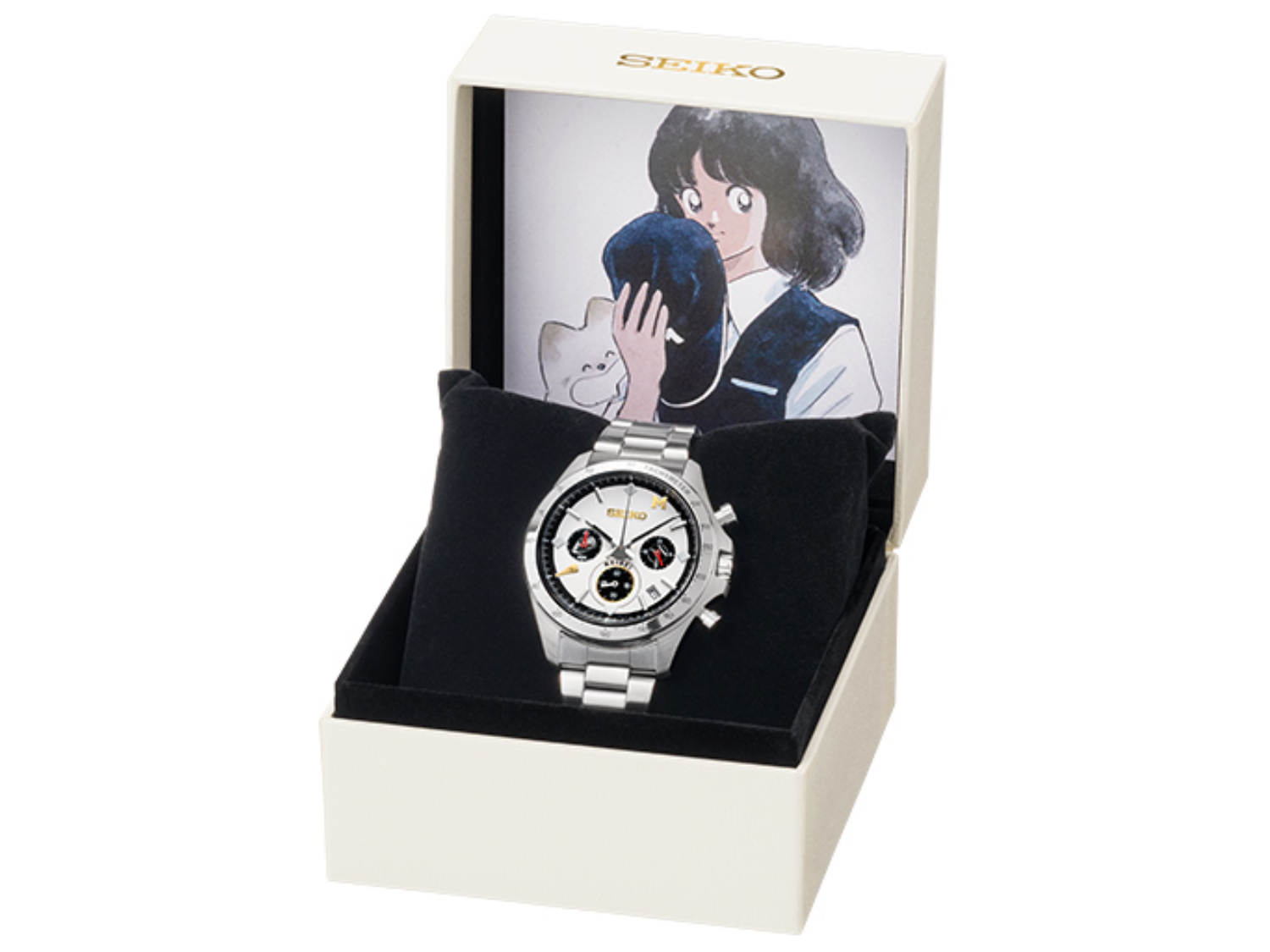
Seiko Launches Limited-Edition Touch Chronograph Featuring Unique Baseball-Themed Dial
Seiko has released a 45th-anniversary chronograph celebrating the baseball manga Touch, limited to 4,500 pieces and priced at roughly $412.